Reverse Proxy#
This will allow me to route incoming http traffic on my box to different services.
I’ll set up an Nginx Docker container to serve this role.
Docker Installation#
While I could install Nginx directly on bare metal,
I’ll use Docker because I plan to add more containerized apps soon anyways.
Docker Engine#
Also known as “Docker CE”, this is the free, open-source version of Docker.
It installs in less than 1 minute following the debian installation guide.
Systemd begins it automatically.
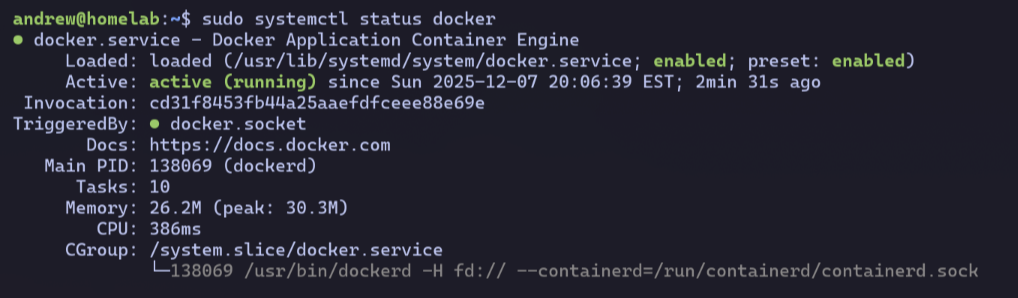
I verify the ‘hello world’ image runs successfully.

Docker Group#
For security reasons, the docker command requires sudo for all users not in the docker group.

This is because docker runs as root, and a malicious actor could have docker do something on their behalf.
I’m safe here on my private LAN, so for convenience, I add my user to that group.
sudo usermod -a -G docker andrew
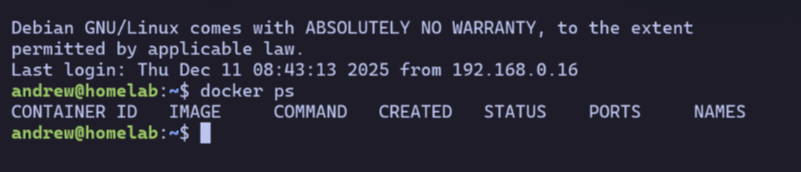
After logging out and back in, I can use docker without sudo.
Nginx#
Docker Compose#
I’ll want my Nginx to eventually route to other containerized services.
Therefore, I’ll head straight for a docker-compose.yaml file so I can extend it later.
I init a new git repo in my home dir to track this file, then enter the following:

- Using the official Nginx image
- exposing ports 80 (http) and 443 (https)
- mounts:
- An nginx.conf (will create this next)
- the SSL cert & private key created last chapter
Nginx.conf#
I create a basic config in the git repo at /nginx/nginx.conf:
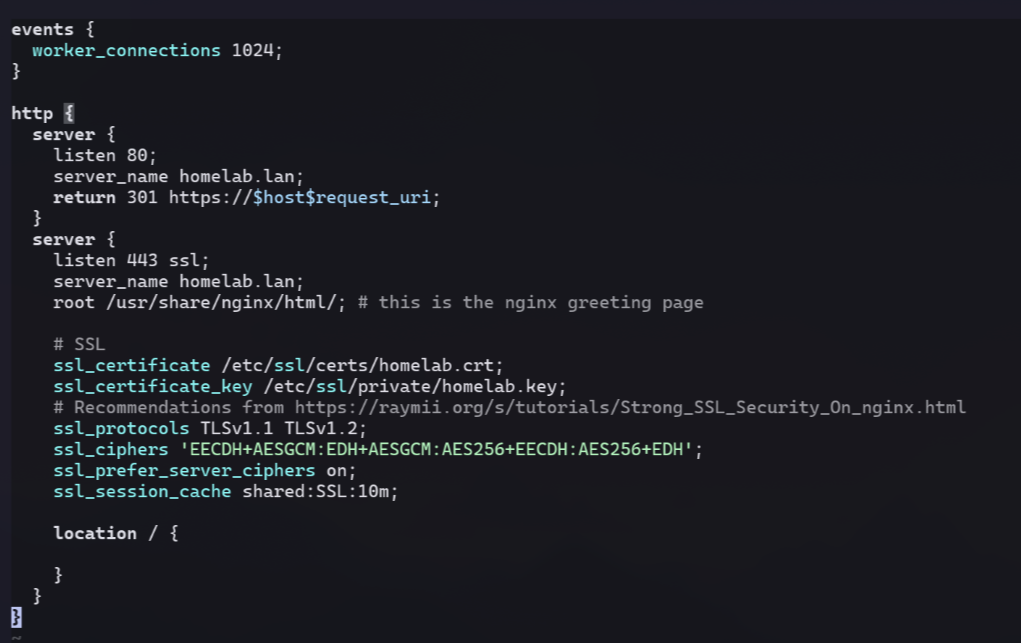
This sets up a couple servers:
- One on port 80 (http) that permanently redirects to port 443 (https)
- The main one at port 443 that uses TLS for encrypted traffic
For now, I’ll just serve up the nginx greeting page.
Running the Container#
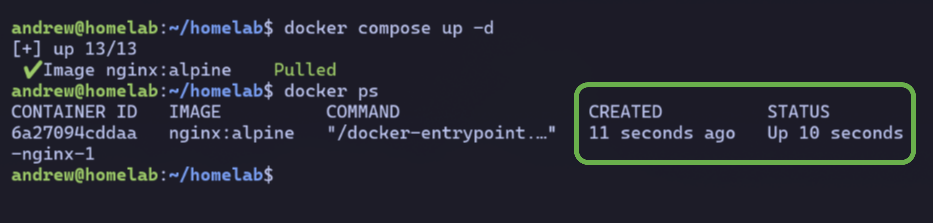
In the root of my github repo, a docker compose up -d runs my container.
I confirm with a docker ps
Web Browser#
Now the moment of truth!
I type in homelab.lan on my laptop’s web browser…
…and am greeted with a security warning. 👀
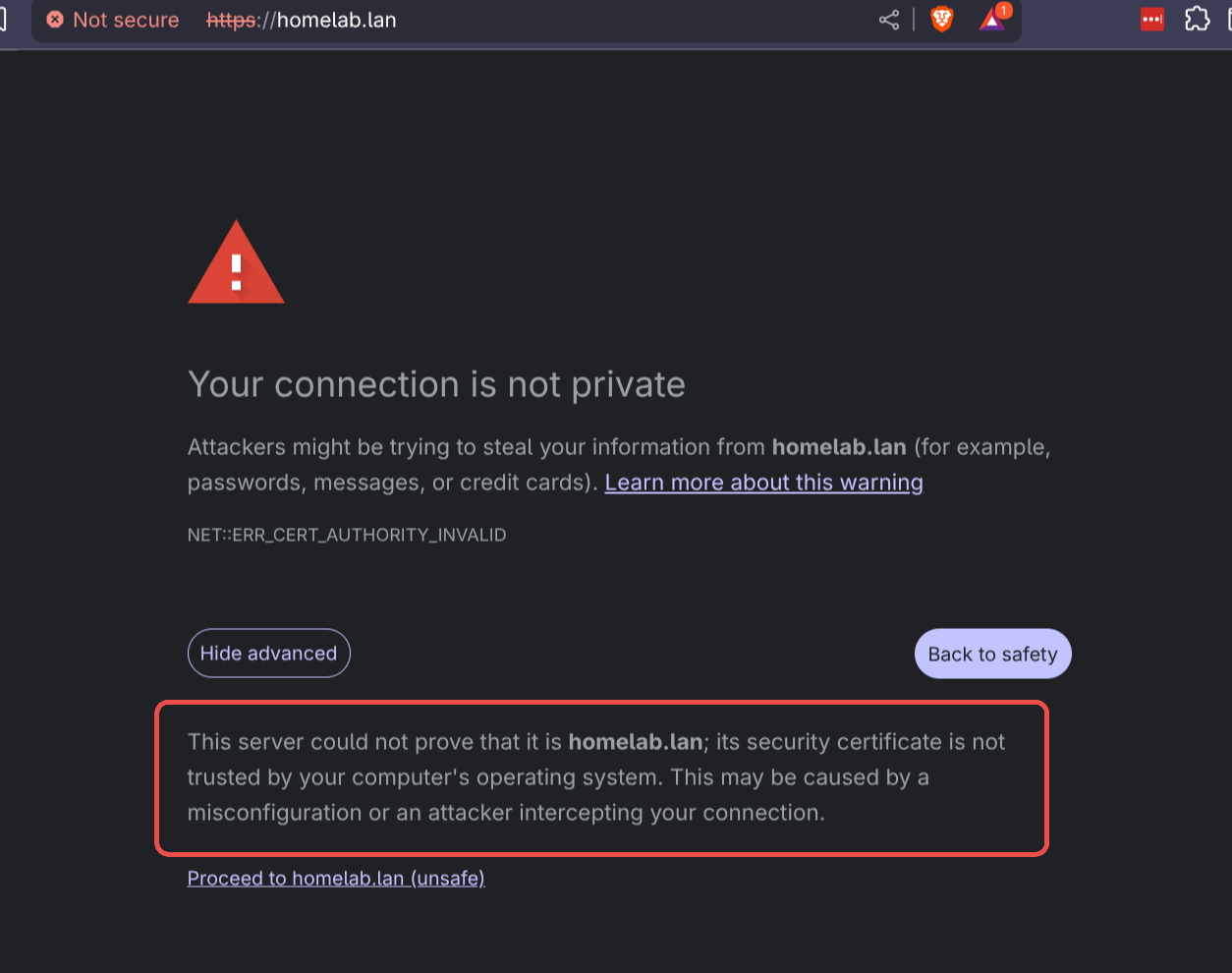
I realize that Brave Browser must not be reading my CA cert from my OS.
Luckily I can manually import a CA cert into Brave’s trusted list via the settings.
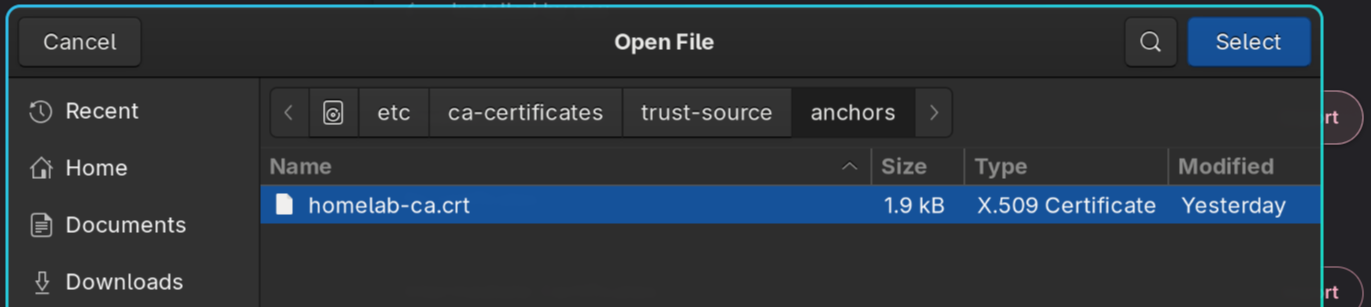
After a page reload, I see the Nginx greeting!
No more full screen warning.
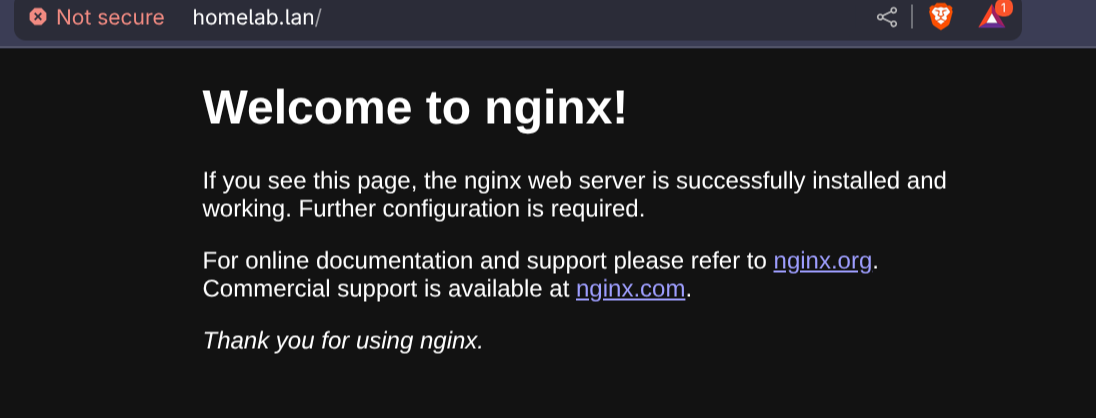
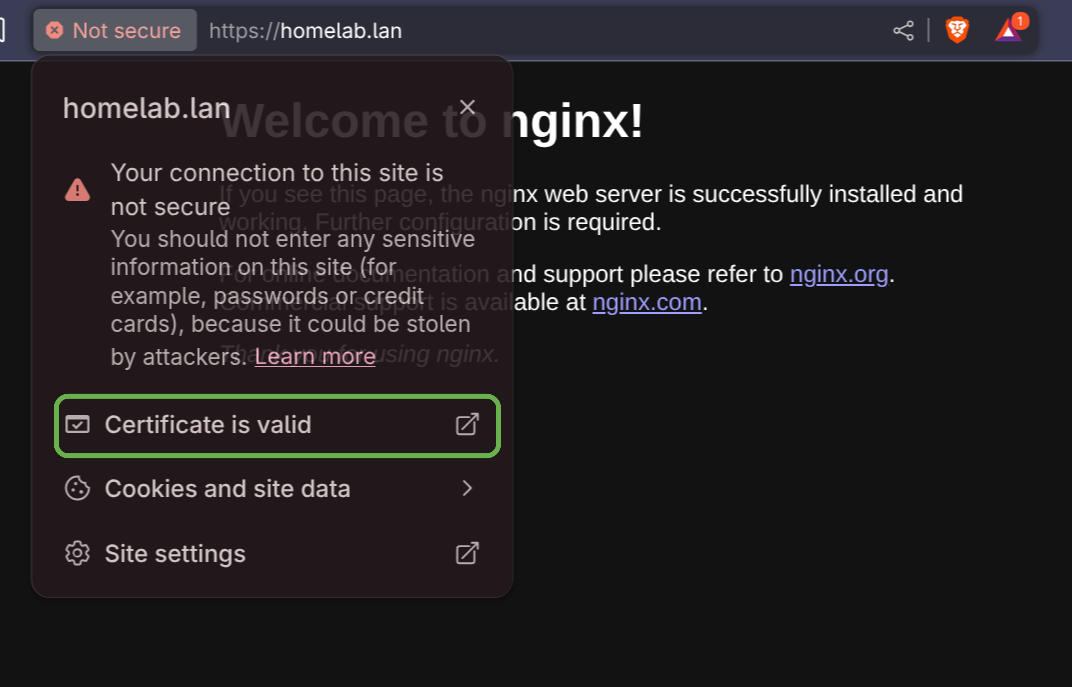
Brave browser does, however, still show an ‘X’ in the address bar.
This is because my CA is not a public one.
But, it does consider my SSL cert as valid,
Systemd Service#
I want my reverse proxy to always start up whenever my box boots up.
Sounds like a job for systemd.
Config#
I create a new homelab.service file in my repo:
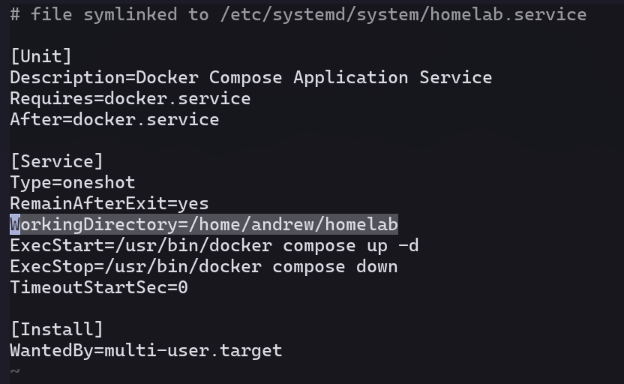
For convenience, I’m still setting a working dir under my home dir.
This spares me from needing to use sudo to edit the relevant files.
Symlink#
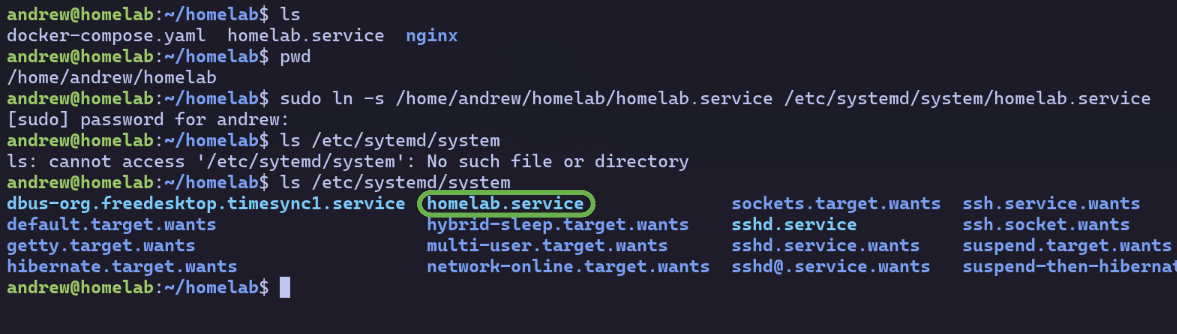
I create a symlink to this file from the dir where systemd will look for it:
Enable#
Reload systemd daemon, enable, then start the service:
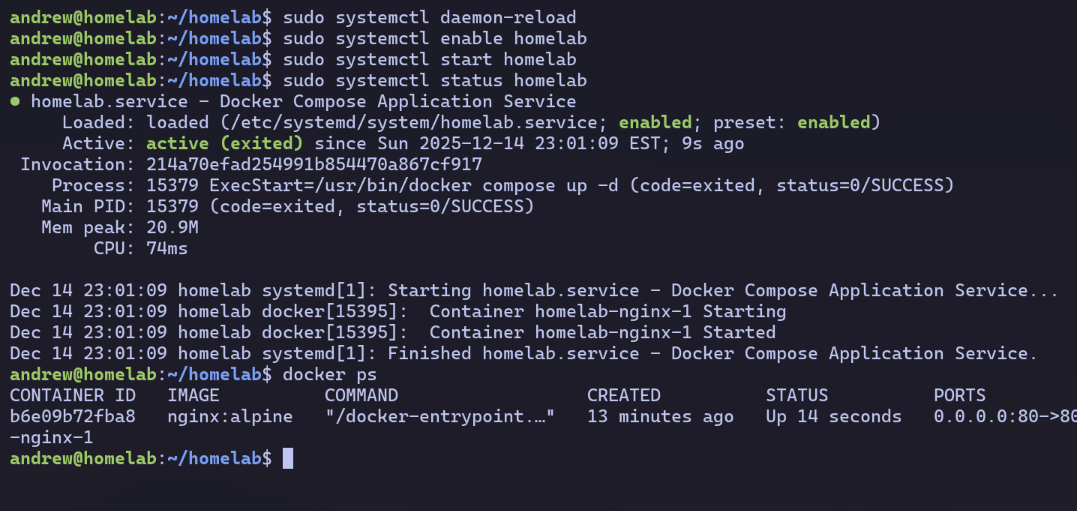
My reverse proxy is all set!
You can see the relevant files for this chapter in my commit here.